How to add a device
SIL Master – Add Device
This page explains how to add a new device to the SIL Master database, including general details and functional safety data. The form is one page in the tool; depending on the option selected under Use (K), you will see either the “Given Failure Rates” panel or the “Given SFF/DC/PFDAVG/PFH/SIL” panel.
1) General Device Information
Complete the top section with the device’s basic fields. Letters A–F match the on-screen markers.
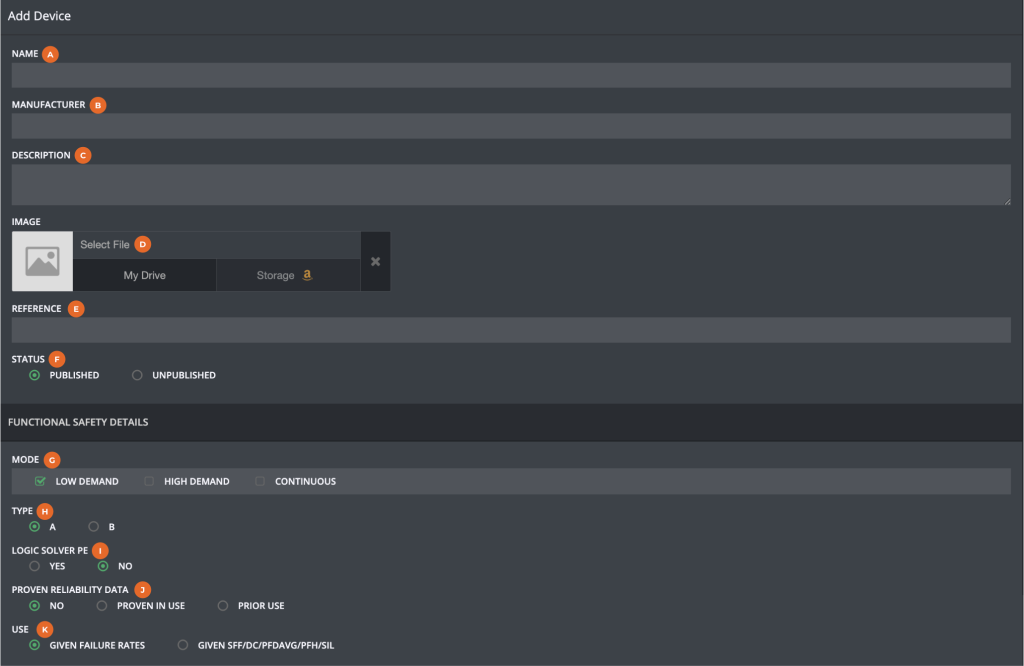
| Label | Field | Description |
|---|---|---|
| A | Name | Required device name. |
| B | Manufacturer | Device manufacturer. |
| C | Description | Short description or identification details. |
| D | Image | Upload or select a device image (local drive or connected storage). |
| E | Reference | Reference to a certificate for example. |
| F | Status | Published (visible to users) or Unpublished (hidden). |
2) Functional Safety Details
Configure the device’s functional safety parameters. Letters G–K match the on-screen markers.
| Label | Field | Description |
|---|---|---|
| G | Mode | Select Low Demand, High Demand, or Continuous. |
| H | Type | IEC 61508 classification: Type A or B. |
| I | Logic Solver PE | Is the device part of a programmable electronic logic solver? Choose Yes or No. |
| J | Proven Reliability Data | Select No, Proven in Use (IEC 61508, or Prior Use (IEC 61511). |
| K | Use | Choose the data-entry model: Given Failure Rates (see section 3) or Given SFF/DC/PFDAVG/PFH/SIL (see section 4). |
Conditional panels: Based on Use (K), the form will show either section 3 or section 4 below.
3) Option 1 — Given Failure Rates
Shown when Use → Given Failure Rates is selected the functional safety is based on the four failure rates of the device. In this example you enter the failure rates as FITs (this can be changed in the account settings).
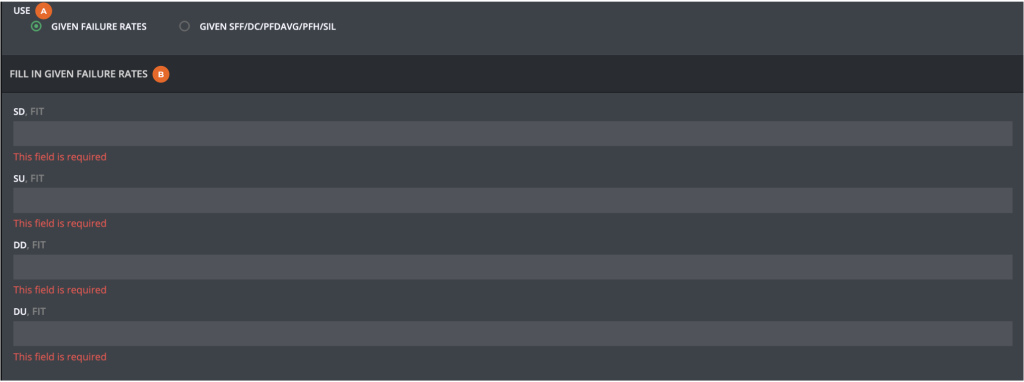
| Field | Description |
|---|---|
| SD | Safe Detected failure rate (failures per billion hours). |
| SU | Safe Undetected failure rate. |
|
DD |
Dangerous Detected failure rate. |
| DU | Dangerous Undetected failure rate. |
Note: All four fields are required when using this option. If the certificate or data sheet of the device does not have all four failures rates enter 0 for the missing one. If you have for example only a Safe Failure rate enter it SU and make SD=0.
4) Option 2 — Given SFF/DC/PFDAVG/PFH/SIL
Shown when Use → Given SFF/DC/PFDAVG/PFH/SIL is selected.
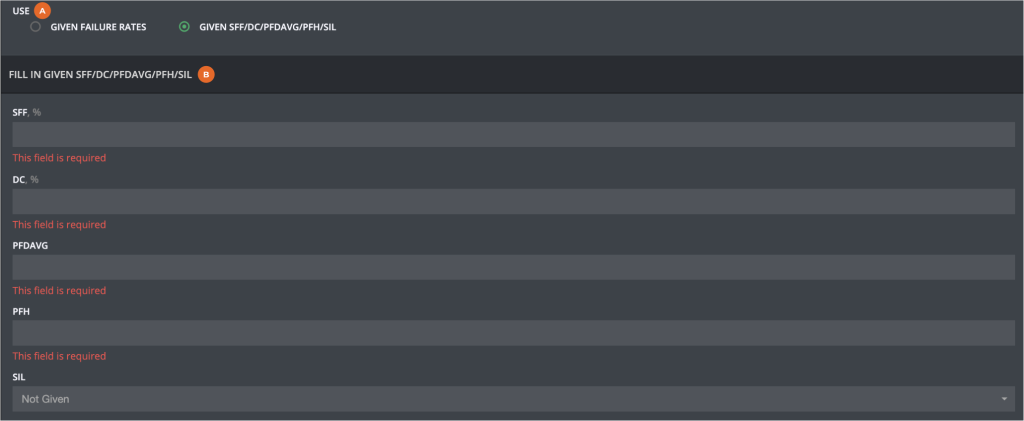
| Field | Description |
|---|---|
| SFF (%) | Safe Failure Fraction. |
| DC (%) | Diagnostic Coverage. |
| PFDAVG | Average Probability of Failure on Demand. |
| PFH | Probability of dangerous failure per hour. |
| SIL | Safety Integrity Level (may be calculated or selected per your system rules). |
5) Saving the Device
- Review entries in General and Functional Safety.
- Confirm the correct Mode (G), Type (H), and Use (K) option.
- Select the desired Status and click Save.
Note: If Status is set to Unpublished, the device will be hidden from standard lists until published.
Video Tutorial
Watch a walkthrough of adding a device, including both data-entry options:
If the video does not load, open it on YouTube: How to add a device.