Desktop Overview
Desktop Overview
The Desktop is the main entry point after logging in to the Business Master application. From here, users can access all major system modules, manage projects, and view their profile and account options. The screen is divided into five main areas, marked in the image as A through E. Whatever is select in A, B, or C, is shown in D. In this case Projects is highlighted.
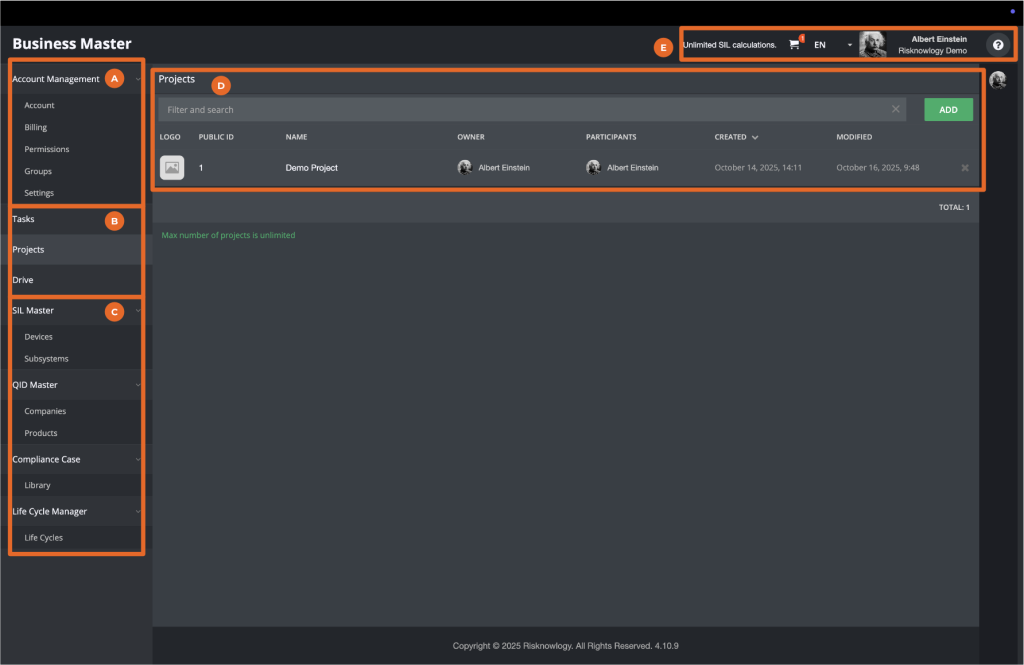
A. Account Management
This section provides access to user and organization-level settings. It includes options such as:
- Account – manage organization and user profile details.
- Billing – review or update subscription and payment information.
- Permissions – control access rights and user roles.
- Groups – organize users into work groups or teams.
- Settings – adjust general system configurations.
B. Tasks, Projects, Drive
This area allows users to navigate to Tasks, Projects, and the Drive (Files) assigned to them.
C.Modules
This area holds the modules assigned to your account. In this case the following modules are visible:
- SIL Master – Your private library of devices and subsystems for SIL (Safety Integrity Level) projects.
- QID Master – A risknowlogy maintained library of companies, their products and their functional safety data:
- Safety functions
- Failure rates: SD, SU, DD, DU
- Type: A or B
- Operating modes: low, high, continous
- Failure modes
- Certificates
- Compliance Case – A library of compliance checklists to be used on projects. You can add your own compliance checklists or purchase existing ones.
- Life Cycle Manager – A library of lifecycles and their phases to be used on project. You can add your own lifecycles.
D. Work Space
This is the main work space. Depending on what is selected this space will change accordingly. In this picture the Projects menu is selected and the Work Space gives access to the projects available for this account..
E. User and System Header
Located at the top of the screen, this bar provides quick access to:
- License status (e.g., Unlimited SIL Calculations)
- Language selection: We currently offer the Business Master tool in the following languages:
- English
- Spanish
- French
- Italian
- German
- Portuguese
- Russian
- User profile – shows the current logged-in user and company account.
- Help icon – Link to support documentation. The link is associated with the page you are looking at.
Together, these sections provide the central navigation and management environment for all Business Master activities.